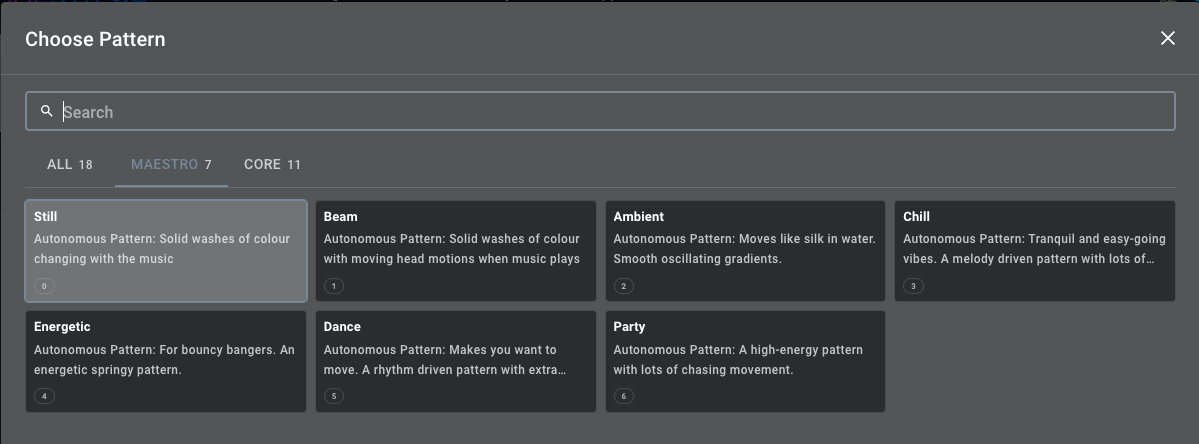
Patterns are at the heart of MaestroDMX. There are 2 types of patterns: Maestro Patterns and Core Patterns. To access the patterns, either navigate to ‘Live Control’ or edit a cue, then click the ‘PATTERN’ dropdown to show the pattern’s tile view.

Maestro Patterns
Maestro Patterns are Autonomous, music-driven, decision-making lighting patterns that change colours, energy, and effects synchronized to the music. You can think of these like ‘Vibes’ to match the mood for moments of your events. Maestro patterns take advantage of Colour Palette Groups, moving through the different colours in the group based on musical transitions. Maestro Patterns include (From lowest energy to highest):
Still:
Solid washes of colour changing with the music
Note: ‘Still’ does not have any moving head support
Beam:
Solid washes of colour changing with the music, but with moving head support
Ambient:
A slower pattern for mellower moods
Moves like silk in water. Smooth oscillating gradients
Chill:
Another slower pattern for mellower moods
Great for music without drums or percussion (classical, solo instrumental, etc)
Tranquil and easy-going vibes
Melody-driven with lots of space
Energetic:
Picking up the energy
Tune it in to get the vibe you want
Energetic springy pattern
Dance:
Our most popular, most flexible pattern
Good for a wide spectrum of vibes
Party:
High energy with lots of chasing movements
Use at your own risk ?
Core Patterns
Core patterns that have a specific look and can be used with or without audio input. They are great for setting static looks that are stationary or have a bit of movement. These include:
Solid Colour, Gradient, Wash, Spectrum, Starry Sky, Twinkle, Chase, Flash Bang, Onset, Mapping Test, and All Black. The Mapping Test pattern is used to verify that your pixel mapping is correct. Also.
NOTE: Core Patterns do not have any pan/tilt motion associated with them. This will come in a future release.
TIP: Use the ‘Chase’ pattern to get specific chase effects.
Solid Colour:
Non-audio reactive only
Provides a solid colour to the lights.
‘Colour Select’: select the colour if using a gradient colour palette
Give the pattern some movement with ‘Speed’, ‘Depth’ (amount of fade), and ‘Phase’ (direction)
‘Shape’: direction and position of the effect
Gradient:
Non-audio reactive only
Similar to Solid Colour but displays the whole palette across the lights, not just a single colour
Give the pattern some movement with ‘Speed’, ‘Variance’ (amount of fade), and ‘Decay’ (direction)
‘Shape’:direction and position of the effect
Wash:
Pattern that moves through different parts of the colour palette based on the beat of the music
Audio and Non-Audio reactive modes
Change colours within a single-colour gradient palette
‘Speed’:change on a multiple of the beat or with unsynced timing, depending on Audio Reactivity mode
‘Colour Shift’: amount of jump to the next location within the colour palette
‘Colour Smoothing’: fade time of the colour change
Spectrum:
Audio and Non-Audio reactive modes
Interesting movement based on music or not
‘Energy’: adjust brightness and position in the colour gradient
‘Contrast’: similar to background level but inverted (0 high, 1 low)
‘Speed’, ‘Decay / Wave Width’, and ‘Attack’ to control movement
‘Shape’: controls the direction and position of the effect
Starry Sky:
Audio and Non-Audio reactive modes
Dancing galaxy-like animations that respond to different audio frequencies
‘Energy’: adjusts brightness and position in the colour gradient
‘Contrast’: similar to background level but inverted (0 high, 1 low)
‘Speed’, ‘Decay’, and ‘Attack’ to control movement
‘Shape’: controls the direction and position of the effect
Twinkle:
Audio and Non-Audio reactive modes
Randomized twinkles that respond to audio frequencies
‘Energy’: adjusts brightness and position in the colour gradient
‘Contrast’: similar to background level but inverted (0 high, 1 low)
‘Speed’ and ‘Decay ’ to control movement
‘Shape’: controls the direction and position of the effect
Chase:
Classic chases synced to the beat of the music or the kick drum
‘Speed’: controls the speed of the chase movement
‘Trigger’:
Non-audio reactive: How often new chases get spawned
Audio reactive: - Trigger = 0.0 use kick drum based trigger. Trigger > 0.0: use the musical beat to trigger chases from every Two Bars to 1/8 notes
‘Contrast’: similar to background level but inverted (0 high, 1 low)
‘Width’: controls how many pixels are in the chase
‘Attack’: controls the rate of onset of the chase
‘Shape’: controls the direction and position of the effect
Flash Bang:
Controllable ‘strobe’ style pattern
Audio and Non-Audio reactive modes
Audio reactive:
When kick drums are present,t then kicks trigger the flashes; conversely, if they are not present, musical onsets trigger the flashes
‘Speed’: trigger threshold (lower = more sensitive)
‘Energy’: intensity of the flash
‘Variance’: control the background light level
‘Decay’: control the fade of the effect
Non-audio reactive:
‘Speed’: rate of flashes
‘Energy’: intensity of the flash
‘Variance’: control the background light level
‘Decay’: control the fade of the effect
Onset:
Flash the lights in a variety of shapes based on onsets in the audio signal
Entire colour palette represented in the lights
Audio and Non-Audio reactive modes
Audio reactive:
‘Sensitivity’: Higher values let more onsets through
‘Contrast’: Background level of lighting
‘Decay’: How quickly a flash fades out
Non-audio reactive:
‘Speed’: Rate of simulated onsets
‘Sensitivity’: Variations in simulated flash brightness
‘Decay’: How quickly a flash fades out
‘Shape’: controls the direction and position of the effect and colours
Mapping Test:
Once your fixture zones are mapped, use this pattern to verify your mapping
The lights should move along the X axis sequentially for 1D mappings and along both X and Y axes for 2D grid mappings.
Use ‘Speed’ and ‘Width’ to dial in the look
All Black:
‘nuff said
Was this article helpful?
That’s Great!
Thank you for your feedback
Sorry! We couldn't be helpful
Thank you for your feedback
Feedback sent
We appreciate your effort and will try to fix the article