Maestro Patterns function best with Grouped Palettes since the Maestro Pattern will make the decision to switch to different Individual/Extended Palettes (contained within the Grouped Palette) based on the music.
NOTE: If you just select an Individual Palette for a Maestro Pattern, the pattern will still function and show dynamic changes, etc. However, the pattern will use the same Individual Palette for the duration of its runtime.
Core Patterns only use a single individual palette and do not have the intelligence to switch to a different one. If you select a Grouped Palette when running a Core Pattern, one of the individual palettes within the group will be chosen at random for the entire runtime of the Core Pattern.
Creating Custom Color Palettes
Users can also create their own Individual/Extended Palettes and Grouped Palettes. These will appear as ‘User’ palettes, whereas the built-in palettes appear as ‘System’ palettes.
Creating Individual/Extended Palettes:
Click on the 3-dot menu to the right of the Color Palette drop-down.

To add an individual/extended palette, click ‘+Add Palette’.
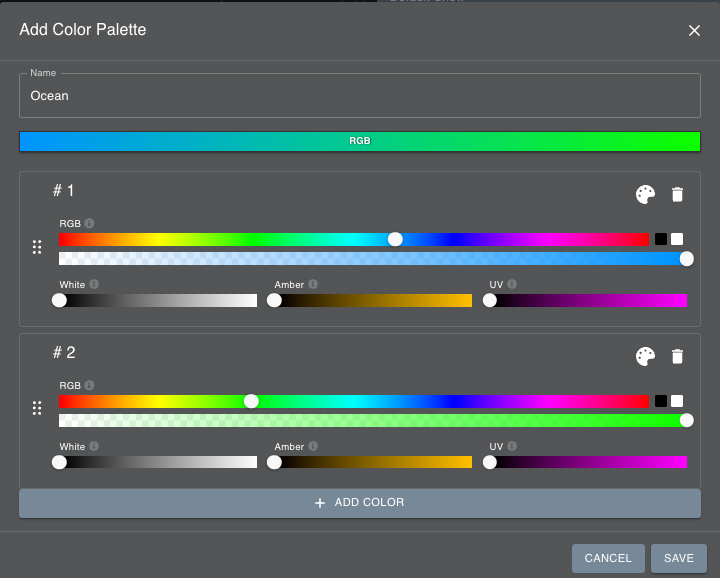
In the pop-up dialog:
Name your color palette
Click ‘+ Add Color’ to add a color stop
Use the color selector on each level (RGB, Saturation, White, Amber, and UV) to dial in the color
Click ‘+ Add Color’ to add another color stop
Change the order of the color stops by dragging them up or down
Click the garbage can icon to remove any color stops
Click ‘Save’ to exit
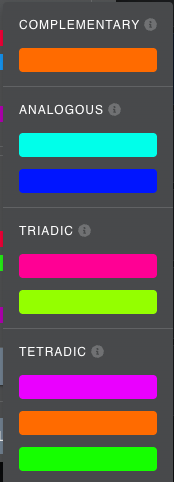
Instead of clicking ‘+ Add Color’ to add a color stop, you can have MaestroDMX suggest color stops that would work well.
Click on the paint palette icon:

And select either ‘Complementary’, ‘Analogous’, ‘Triadic’, or ‘Tetradic’ colors to build your palette:
Creating Grouped Palettes
To add a Grouped Palette, click ‘+Add Palette Group’.

To build a Grouped Palette:
Name the Grouped Palette
Navigate to the Individual/Extended Palettes that you want to include in the group and click the check box
Refine your search using the search bar and/or ‘System’ and ’User’ checkboxes
View the palettes in your group under ‘Selected Palettes’
Use this with an Autonomous Maestro pattern for the best effect
Was this article helpful?
That’s Great!
Thank you for your feedback
Sorry! We couldn't be helpful
Thank you for your feedback
Feedback sent
We appreciate your effort and will try to fix the article