Creating a New Fixture Profile
In the top right corner of the Fixture Profile page is a 3-dot menu button. Click here and navigate to “+ Add Profile”, then select “ADD NEW”.
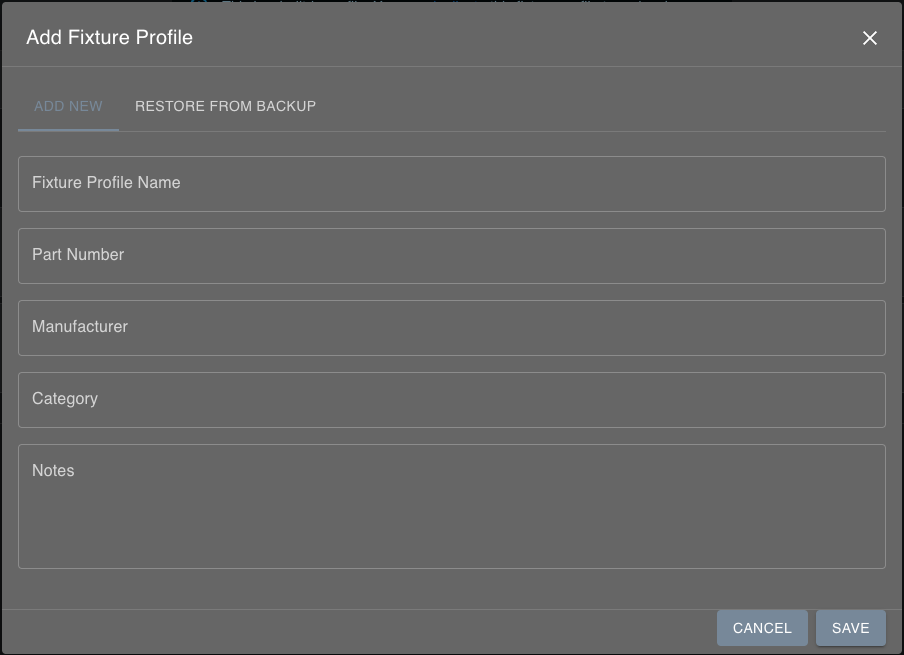
Add your fixture profile, enter relevant information, and save.
Note: The “Upload Profile File” tab allows users to upload previously created fixture profiles. Find a wide selection of fixture profiles here.
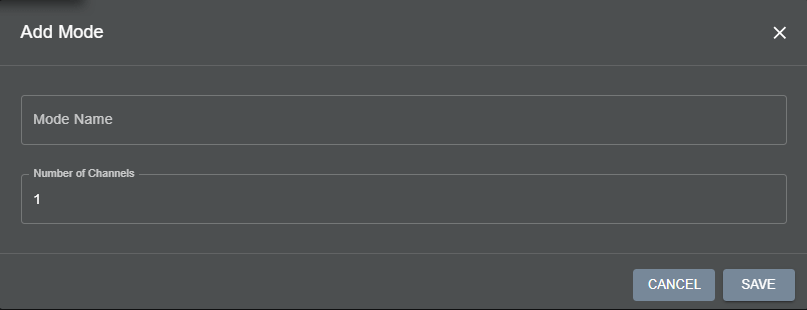
Click the menu button or ‘add a new mode’ text to add a new mode, and enter the number of channels and a name, then save.

Each channel in your newly added mode will save automatically, and can be re-ordered and assigned a name and attribute type. The Details section shows specific channel settings. Refer to your fixture’s DMX specification for necessary information to help you choose the right type for each channel.
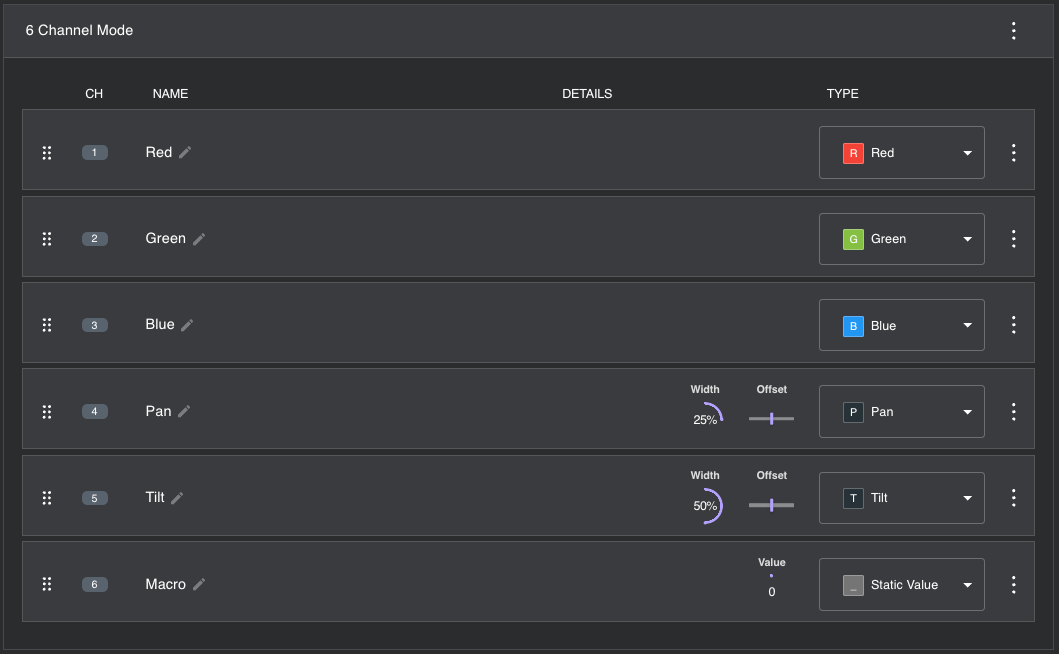
Click a channel’s 3-dot menu button to edit the channel. Depending on the type of Attribute assigned to the channel, different Attribute Properties will be displayed on the left of the type.
Click “Save Channel”
Repeat steps 3-5 for each channel and repeat steps 2-5 to create more modes. Refer to Understanding Attribute types for more information.
Modifying Existing Fixture Profiles
Both built-in and user-created fixture profiles can be modified. Modifying a built-in fixture can be useful for creating templates that are more specific to your setup.
To modify a built-in fixture, search for the desired fixture and click “duplicate fixture profile,” then follow the below steps.
Adding Modes
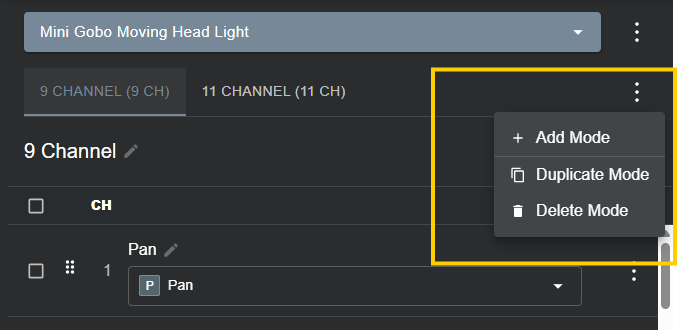
Locate and click the top-level menu button underneath the fixture name and manufacturer. Click ‘+ add mode.’
Changing a fixture's name and manufacturer
In the 3-dot menu next to the fixture name click “Edit Fixture Profile”. In the pop-up window, you can change your fixture profile’s name and manufacturer.
Downloading a Fixture Profile
The top-level menu button beside the fixture name and manufacturer also provides the functionality to download a fixture. Downloading a fixture can be useful if you want to share a fixture you created on your device or have a backup in case of a Factory Reset or a system malfunction.
Duplicate Fixture Profile
The same menu button also allows users to duplicate their fixtures. This feature is used to duplicate and modify fixtures other than the fixtures found in the built-in library.
Deleting Fixture Profiles
The final section of the menu button allows users to delete their fixtures. Once a fixture is deleted it cannot be restored.
Adding Channels to Modes and Deleting Modes
Click on a mode. In the 3-dot menu button located beside the right side of the Mode name users can:
Add mode
Duplicate mode
Delete Mode
Once a mode is deleted it cannot be restored.
Changing Channel Name and Type, Duplicating Channels, and Deleting Channels
In the 3-dot menu button located on each channel, users can change channel type, name, and static value settings by clicking “edit channel”. Similarly, channels can be duplicated and deleted with the same menu button. Once a channel is deleted, it cannot be restored.
With version 1.5 there are selectable boxes next to each channel for multi-select. Hitting the top box will automatically select all boxes in that mode and allow for quick deletion or duplication. Use the icons on the top right to duplicate or delete any selected fixtures.
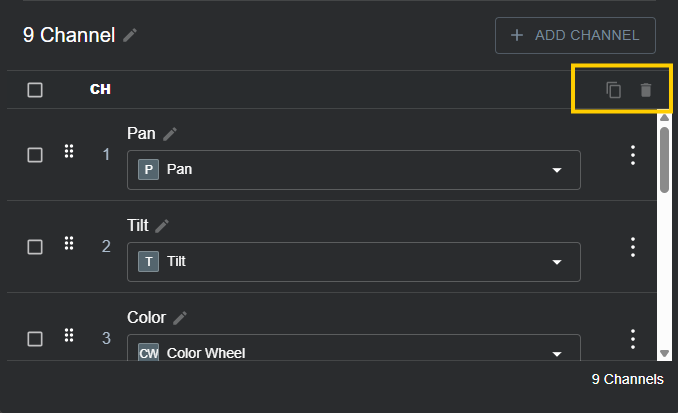
Next to the select boxes on each channel is a grab box that users can drag and drop the channel to re-order the channels. The rest of the channels will automatically re-order themselves around whichever placement is arranged.
Was this article helpful?
That’s Great!
Thank you for your feedback
Sorry! We couldn't be helpful
Thank you for your feedback
Feedback sent
We appreciate your effort and will try to fix the article