Navigate to ‘System’-> ‘Software Update’ to access System information, and in-app Software Update, etc.
The System Information section allows you to review essential details about the MaestroDMX system. Additionally, you can initiate software Updates from this section if necessary.
Updating MaestroDMX Software
Ensure the MaestroDMX stays up to date and takes advantage of the latest features and all improvements, follow these steps to update the software:
Updating Software for Units Running Under V1.4 or Lost Connection
If your MaestroDMX unit is running software version 1.3.2 or lower (eg, v1.3.1, v1.3, v1.2, etc) or to reconnect usinga reset package, then follow the routine below using the USB drive. If the MaestroDMX unit is already running v1.4 and users have connection, an USB stick isn’t nessecary to update, see the next section for instructions.
IMPORTANT: Before proceeding, ensure you have backed up any important settings you wish to keep (stages, fixture profiles, and shows).
1. Download Software:
Visit maestrodmx.com/pages/support from a computer to download the most current software package for MaestroDMX.
Save the downloaded software package to a USB stick for easy transfer.
IMPORTANT: The USB stick must be formatted to FAT32.
2. Insert USB Stick:
Insert the USB stick containing the software bundle into an available USB port on your MaestroDMX device.
IMPORTANT: The USB WiFi dongle must be plugged in during the software update process to ensure MaestroDMX enables the USB WiFi dongle
3. Restart MaestroDMX:
Turn off the MaestroDMX unit by unplugging it from power and waiting 10 seconds.
Power up the MaestroDMX unit by plugging the power back in.
Allow a few minutes for the software to load. During this time, observe the indicator light on your MaestroDMX.
First, the light will turn RED, then a WHITE blinking light indicates that the software is loading.
WARNING: DO NOT UNPLUG THE POWER DURING THE UPDATE
4. Successful Update:
Once the indicator light turns BLUE (or GREEN if it is receiving audio), it signifies that the software update is complete and successful.
5. Remove USB Stick:
Unplug the USB stick from the MaestroDMX unit.
6. Restart MaestroDMX:
Turn off the MaestroDMX unit by unplugging it from power and waiting 10 seconds.
Power up the MaestroDMX unit by plugging the power back in.
7. Verify:
Open the MaestroDMX Web App in a new browser window and verify that the software has updated. Check via the ‘System’ -> ‘System Info’ page.
NOTE: Please open the MaestroDMX Web App in a new browser window after updating the software to avoid caching issues.
IMPORTANT: In some cases, certain USB sticks do not load the software properly, and the update does not complete. If this happens, please try another USB stick.
Updating Software for Units Running v1.4 or Higher
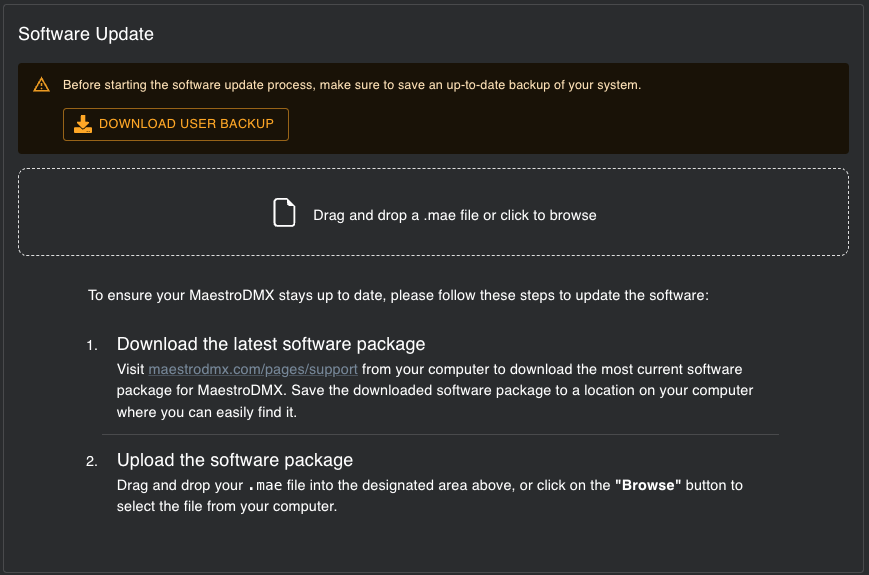
If the MaestroDMX unit is running software v1.4 or higher, then users can update the software ‘over the air’ via the MaestroDMX WebApp.
IMPORTANT: Before proceeding, back up any important or custom settings (stages, fixture profiles, and shows).
Navigate to ‘System’ -> ‘Software Update’
Download the latest software package:
Visit maestrodmx.com/pages/support from your computer to download the most current software package for MaestroDMX. Save the downloaded software package to a location on your computer where you can easily find it.
Download a backup of user settings (stages, shows, fixtures, etc)
Upload the software package:
Drag and drop ther .mae file into the designated area above, or click on the "Browse" button to select the file from your computer.
Allow a few minutes for the software to load. During this time, observe the indicator light on your MaestroDMX.
First, the light will turn RED, then a WHITE blinking light indicates that the software is loading.
5. Verify:
Open the MaestroDMX Web App in a new browser window and verify that the software has updated. Check via the ‘System’ -> ‘System Info’ page.
6. Restart MaestroDMX:
Turn off the MaestroDMX unit by unplugging it from power and waiting 10 seconds.
Power up the MaestroDMX unit by plugging the power back in.
Was this article helpful?
That’s Great!
Thank you for your feedback
Sorry! We couldn't be helpful
Thank you for your feedback
Feedback sent
We appreciate your effort and will try to fix the article